Sketch to SVG for Tattoo Stencils: Compare, Refine and Export
Converting a sketch into SVG can give you editable artwork for preparing a tattoo stencil. The useful question is whether the generated contours retain the design you want, and what still needs redrawing before it enters your print workflow.
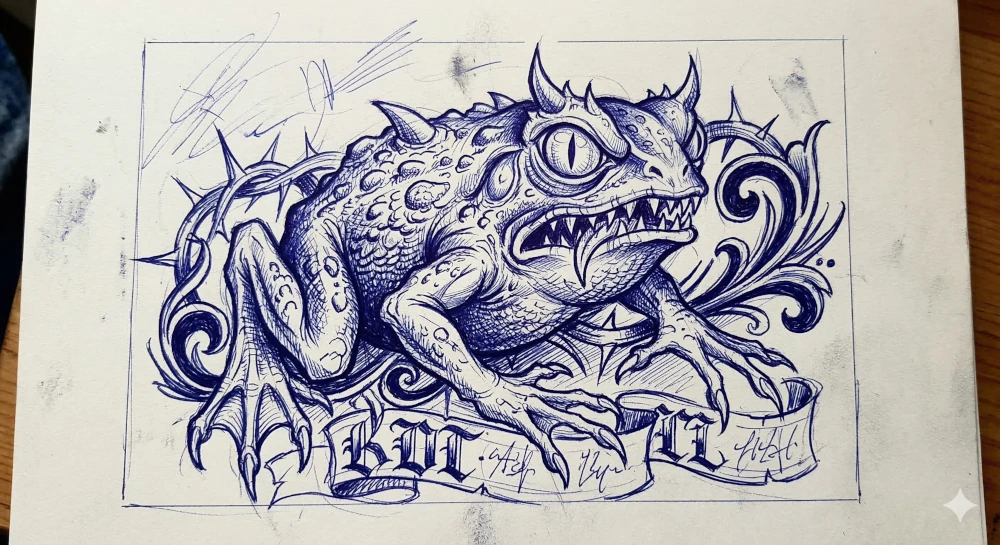
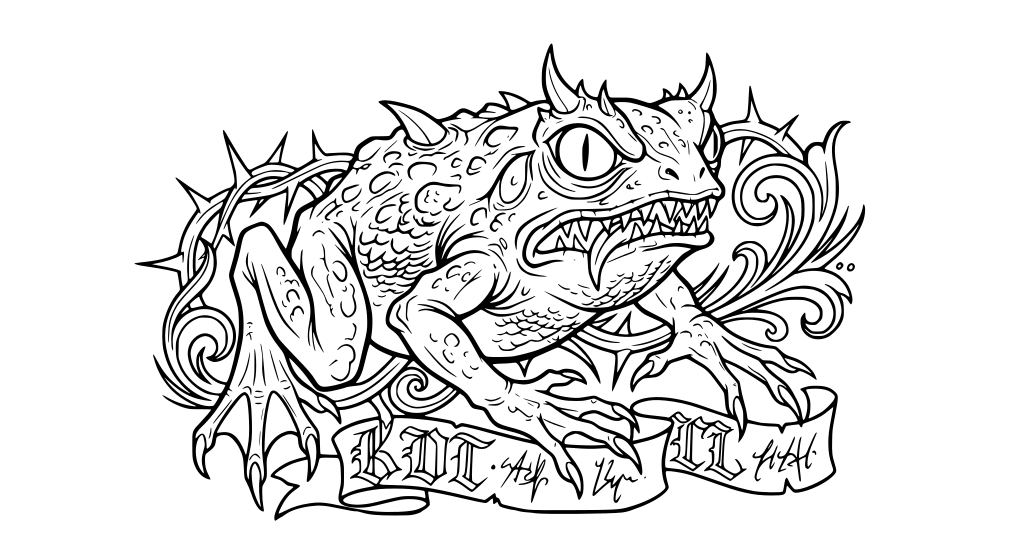
This guide uses the public frog illustration already shown on our tattoo stencil page. The comparison is between the photographed artwork and its generated SVG. It is a digital example; it has not been validated as a printed or applied stencil.
Open the source reference and inspect the SVG to compare them separately.
What changes in this example
The photographed source has paper shading, cross-hatching, a rectangular border and stray marks above the subject. The SVG removes much of that surrounding material and replaces the shaded areas with more distinct black shapes and contours.
The broad composition remains recognizable: the frog, its large eye, the decorative curves and the ribbon below it. However, the smaller skin textures, teeth, ribbon edges and lettering differ from the reference. The output is an interpretation of the drawing. If an exact letter or contour matters, correct it explicitly instead of assuming it was preserved.
1. Prepare your reference
Use artwork you own or have permission to adapt. Photograph it straight on, with even light and without shadows crossing the important lines. Crop away the desk, borders and notes you do not want in the result.
Keep an untouched copy of the source. Identify details that must remain faithful: lettering, symmetry, facial features, the outer silhouette or the spacing between repeated elements. Those become your review checklist after conversion.
2. Preview in black and white
Upload the reference on the tattoo stencil conversion page and select black and white. Compare the generated preview with the source before choosing to download or edit it. Processing time and results vary with the image and settings.
First check the whole composition. Then zoom into the areas that carry the identity of the drawing. In the frog example, the eye, mouth, claws and ribbon deserve separate inspection. A simpler appearance can be useful, but fewer marks alone do not establish a more faithful result.
3. Refine the vector artwork
Sign in to download the SVG or open it in the editor. Remove unwanted marks, repair contours and redraw details that changed. Treat lettering as a separate design element when exact wording or style matters.
Check dense clusters of lines at the intended output size. Decide which lines are structural and which are shading references. Keep only the information you intend to use in the stencil; the generated file does not make that design decision for you.
If a drawing must be reproduced exactly, manual tracing may be the appropriate workflow. AI conversion cannot recover a detail that is unreadable in the source with guaranteed accuracy.
4. Export at the intended size
Keep SVG as your editable master. Export PNG or PDF when your printer software requires one of those formats. Set the artwork dimensions deliberately and check the print settings for scaling or fitting to the page.
Print a paper proof and measure it. Inspect whether nearby lines merge and whether the design remains readable at the chosen size. Follow the instructions for your own printer and transfer workflow; this article does not establish compatibility with every device.
A practical review checklist
- Does the overall silhouette match your intended design?
- Have important features, repeated shapes and lettering been checked against the source?
- Are accidental marks removed and essential contours retained?
- Is the file readable at the intended size, including dense areas?
- Have you measured the paper proof and checked the export in your actual print software?
See the stencil artwork examples for other starting points. For a broader choice of editing and tracing workflows, read our image-to-SVG converter guide.
Compare the result with your artwork, then refine the details.
Preview Your Reference