Best Image to SVG Converters Compared (2026)
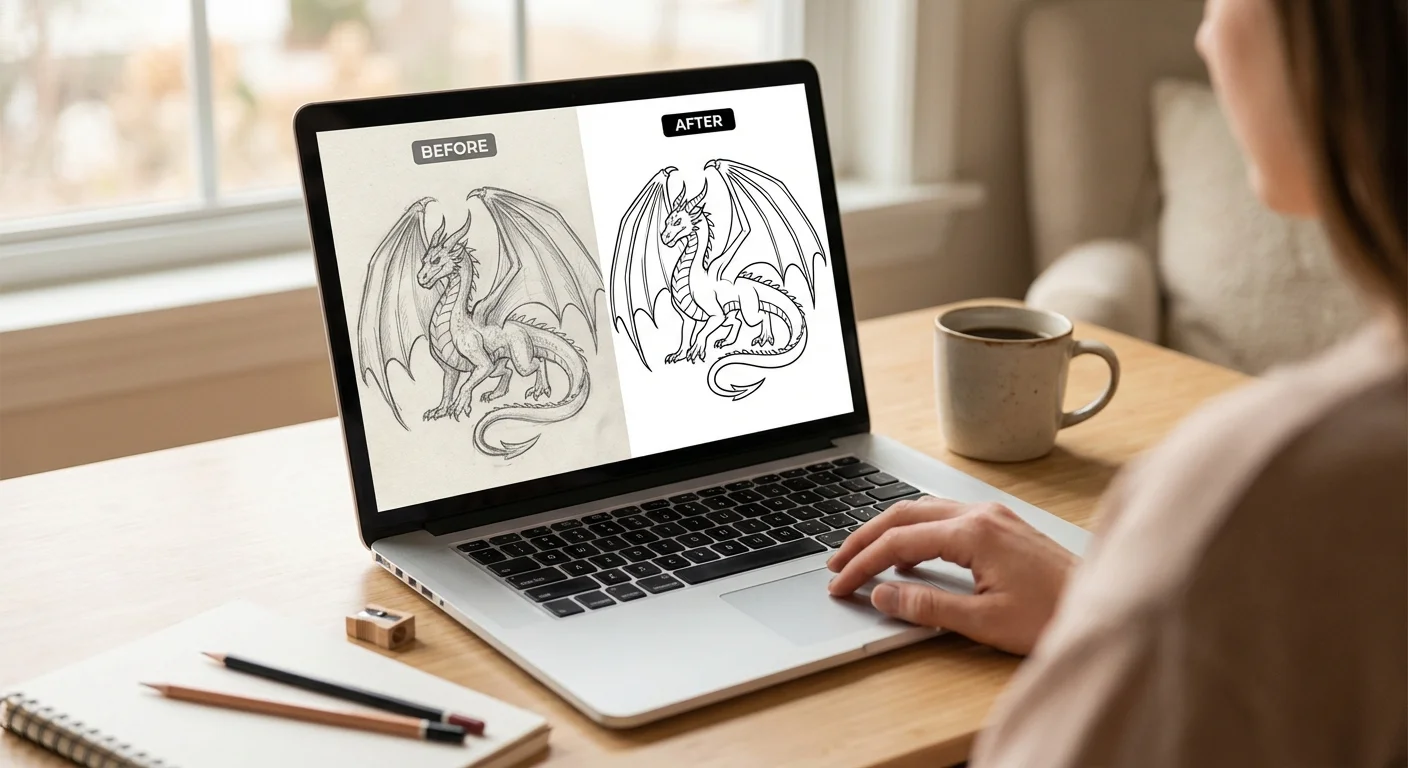
Whether you’re a Cricut crafter, designer, or print-on-demand seller, you need a reliable way to convert raster images to clean SVG vectors. But with dozens of tools available, from free open-source to $30/month subscriptions, which one is actually worth your time and money?
We tested the most popular image-to-SVG converters on the same set of images: a pet portrait, a hand-drawn sketch, a logo, and a detailed illustration. Here’s what we found.
Quick Comparison
| Tool | Price | AI-Powered | Free Tier | Best For |
|---|---|---|---|---|
| Vector Magic | $9.95/mo or $295 desktop | No | 2 images | General vectorization |
| Vectorizer.AI | $9.99/mo | Yes | None | High-volume auto-trace |
| Adobe Illustrator | $22.99/mo | No | 7-day trial | Designers already in CC |
| Inkscape | Free | No | Unlimited | Budget-conscious users |
| Kittl | $15/mo | Partial | Limited | POD sellers + design |
| Lineart.ink | From $4.90/mo | Yes | 100 credits | Crafters + line art |
| Convertio | Free (limits) | No | 100MB/day | Quick file conversion |
| AutoTracer | Free | No | Unlimited | Simple one-off traces |
Paid Tools
Vector Magic
The original online vectorizer, around since 2007. Vector Magic offers both a desktop app and a web version with automatic and manual tracing modes.
Pricing: $9.95/month (unlimited online) or $295 one-time desktop license
What it does well:
- Mature, battle-tested algorithms that handle a wide range of images
- Good color quantization with manual palette editing
- Desktop version works offline and supports batch processing
- Reliable results on logos, icons, and simple graphics
Where it falls short:
- The interface feels dated compared to newer tools
- No AI-powered enhancement. Uses traditional tracing algorithms
- Desktop version hasn’t seen significant updates in years
- Only 2 free conversions to try before subscribing
- Struggles with complex images like detailed photos
Best for: Designers who need a proven, reliable tool for general vectorization and don’t mind the older interface. The desktop license makes sense if you convert images frequently and want offline access.
Vectorizer.AI
A newer entrant that uses what they call a “Deep Vector Engine,” combining deep learning with computational geometry. Vectorizer.AI focuses on high-quality automatic conversion.
Pricing: $9.99/month for unlimited web conversions. API access starts at $9.99 for 50 credits.
What it does well:
- AI-powered tracing produces noticeably cleaner results than traditional tools on most images
- Visual palette editor lets you reduce and remap colors before export
- Smart shape recognition detects circles, ellipses, and rectangles in your image
- Outline/stroke mode is useful for vinyl cutting workflows
- Fast processing (typically under 10 seconds)
Where it falls short:
- No free tier at all. You have to subscribe before converting a single image
- No built-in background removal. You need to pre-process in another tool
- Input limited to 3 megapixels and 30MB
- No text-to-vector capability
- Limited post-conversion editing
Best for: Users who convert many images per month and want the best automatic quality. The lack of a free tier means you’re committing upfront, but the results are consistently good.
Adobe Illustrator (Image Trace)
The industry-standard vector editor includes Image Trace, a built-in rasterization tool. It’s not a standalone converter, but it’s what many professionals use.
Pricing: $22.99/month (single app) or $59.99/month (Creative Cloud All Apps). 7-day free trial available.
What it does well:
- Maximum manual control over every aspect of the trace
- Results can be immediately edited with Illustrator’s full toolset
- Supports gradients and transparency in traced output
- Multiple presets (High Fidelity Photo, Low Fidelity Photo, 3 Colors, Black and White, etc.)
- Batch processing possible via scripting
Where it falls short:
- Overkill (and overpriced) if you only need vectorization
- Steep learning curve. Getting good results requires understanding the settings
- Default results often need significant manual cleanup
- Slow workflow: 10-30 minutes per image with manual adjustments
- Not AI-powered. Uses traditional algorithms similar to Potrace
Best for: Designers who already have a Creative Cloud subscription and need fine-grained control. Not worth subscribing to just for vectorization.
Kittl
A design platform with built-in vectorization, templates, and typography tools. Kittl targets POD sellers and social media designers.
Pricing: $15/month Pro plan (includes limited AI credits). Free plan available with restrictions.
What it does well:
- Full design platform with thousands of templates
- Strong text effects and typography tools
- Vectorization integrated into a broader design workflow
- Good for creating POD-ready designs from scratch
- Export in multiple formats including SVG
Where it falls short:
- Vectorization is one feature among many, not the core focus
- More expensive than dedicated converters if you only need vectorization
- AI credits are shared across all AI features, so they run out quickly
- The vectorizer itself isn’t as advanced as dedicated tools like Vectorizer.AI
Best for: POD sellers who need a full design platform, not just a converter. If you’re making t-shirt designs, stickers, or social media graphics from templates, Kittl’s broader feature set justifies the price.
Lineart.ink
AI-powered converter specialized for clean line art and vector output. Unlike traditional tracers that work on pixel color boundaries, the AI analyzes the actual content of your image and generates intentional vector paths.
Pricing: From $4.90/month (500 credits) up to $44.90/month (12,900 credits). Pay-as-you-go credit packs from $19.90 (no subscription needed). 100 free credits on signup.
What it does well:
- AI understands image content and traces structural lines, not pixel noise or compression artifacts
- Produces clean paths with minimal nodes, resulting in smooth cuts, small file sizes, and easy editing
- Excellent at converting hand-drawn sketches, pencil art, and ink drawings into clean vectors
- Great for generating coloring book pages from photos (trace a pet portrait, print, and color)
- Text-to-vector generation creates original SVG designs from text prompts
- Built-in SVG editor for tweaking results before export
- Two quality levels: Normal (fast, good for simple images) and High (better detail preservation on complex images)
- Credit packs for occasional users who don’t want a monthly subscription
- Free tier with no watermarks (100 credits, enough for 5 conversions)
- Lowest entry price of any paid converter at $4.90/month
Where it falls short:
- Newer service, still building its track record
- Focused on line art and mono/sketch-style output, not photo-realistic vectorization
- Not ideal for full-color, multi-layered vector conversions
Best for: Cricut and Silhouette users who need clean cut files. Artists who want to digitize hand-drawn sketches or ink artwork. Teachers and parents making coloring book pages. POD sellers generating original line art from text prompts. The credit-based pricing works well for hobbyists who convert a few images per month, while the higher tiers serve professionals who convert daily.
Free Tools
Inkscape (Trace Bitmap)
The most capable free option. Inkscape is a full open-source vector editor with a built-in tracing tool based on the Potrace engine.
What it does well:
- Completely free, open source, no account needed
- Runs locally (your images never leave your computer)
- Full vector editor included for post-trace editing
- Multiple trace modes: brightness cutoff, edge detection, color quantization
- Available on Windows, Mac, and Linux
Where it falls short:
- Steep learning curve. The trace settings are confusing for beginners
- Produces significantly more nodes than commercial tools, making SVGs harder to edit
- Results require trial-and-error to get right
- Slow on complex images, occasional crashes
- No AI enhancement. Quality depends heavily on your source image and settings
Best for: Budget-conscious users who are willing to invest time learning the tool. Good enough for simple logos and high-contrast images, but frustrating for complex conversions.
Convertio
A general-purpose file converter that supports PNG/JPG to SVG among hundreds of other format conversions.
What it does well:
- Very fast (typically under 5 seconds)
- No account needed for basic conversions
- Supports many input and output formats
- Batch conversion available
- Simple drag-and-drop interface
Where it falls short:
- Basic auto-trace with no quality controls
- Inconsistent results. Sometimes good on simple images, often poor on anything complex
- Produces bloated SVG files
- 100MB daily limit on free tier
- No preview before download
Best for: Quick, one-off conversions of simple images where quality isn’t critical. Not a real vectorizer, more of a format converter.
AutoTracer
A simple, truly free web-based tracer that’s been around for years. No signup, no limits, no watermarks.
What it does well:
- Completely free with no restrictions
- No account required
- Basic color and smoothing controls
- Supports multiple output formats (SVG, EPS, PDF, DXF)
Where it falls short:
- Outdated interface
- Jagged curves on anything beyond simple shapes
- No preview of results before download
- Old Potrace-based algorithm with limited quality
- No AI or modern tracing techniques
Best for: A last resort when you need a free, no-signup trace of a very simple image.
What Actually Matters When Choosing
For Cricut and Silhouette Users
Your SVG will be physically cut, so the quality of the vector paths directly affects your workflow:
- Clean cut lines matter more than color accuracy. Jagged paths waste vinyl and make weeding miserable
- Fewer nodes mean smoother cuts and easier editing in Design Space
- Background removal should be built in or at least easy to handle
- Simple output is better. You don’t need gradient fills or transparency for vinyl cutting
- Price sensitivity is real. Most crafters convert a few images per month, not hundreds
For Artists and Hand-Drawn Work
If you’re digitizing sketches, ink drawings, or hand-lettering:
- Line quality is everything. The tool needs to produce smooth, confident strokes from wobbly pencil lines
- Noise handling matters. Paper texture, pencil smudges, and scanner artifacts should be filtered out, not traced
- Minimal cleanup saves hours. A good conversion should be usable right away, not require 30 minutes of node editing
For Coloring Books and Educational Use
Converting photos or illustrations into clean outlines for coloring pages:
- Bold, clear outlines that print well at any size
- No fills or shading, just clean line work
- Scalable output so you can resize without losing quality (the whole point of SVG)
For Designers
- Manual control matters. You’ll want to tweak settings and edit results
- Color accuracy is important for brand work
- Integration with your existing tools (Illustrator, Figma, etc.) saves time
- Output format options beyond just SVG (EPS, PDF, AI)
For POD Sellers
- Speed matters when you’re creating many designs
- Text-to-vector capability can generate original designs, not just convert existing ones
- Template integration speeds up the design-to-listing workflow
- Commercial licensing must be clear for products you sell
The Bottom Line
There’s no single “best” converter. It depends on what you’re converting and how often.
If you convert images occasionally and want something free, start with Inkscape. It has the steepest learning curve but the most capability at zero cost.
If you convert images regularly and want consistent quality with minimal effort, Vectorizer.AI ($9.99/mo) or Vector Magic ($9.95/mo) are the established choices for general vectorization.
If you’re a Cricut or Silhouette user making cut files from photos or sketches, Lineart.ink’s AI produces cleaner paths for cutting than traditional tracers, and the credit-based pricing works well for occasional use.
If you’re digitizing hand-drawn art, whether it’s ink illustrations, pencil sketches, or hand-lettering, an AI-powered tool like Lineart.ink will handle paper texture and pencil noise far better than traditional threshold tracers.
If you’re making coloring book pages from photos or illustrations, you want clean outlines without fills. AI-powered tools excel here because they understand the structure of the image rather than just tracing color boundaries.
If you’re a POD seller who needs a full design workflow, Kittl’s platform gives you vectorization plus templates, typography, and mockups in one place.
If you already pay for Creative Cloud, Illustrator’s Image Trace is included in your subscription. It’s not the easiest to use, but with practice it produces professional results.
The best advice? Most tools offer free trials or free tiers. Test your actual images in two or three tools before committing to a subscription.
Related Guides
- Step-by-step Cricut workflow: How to Convert a Photo to SVG for Cricut
- File format basics: PNG vs SVG: Why Your Cutting Machine Needs Vector Files
- Kid art projects: Turn Your Kid’s Drawing into a Vinyl Decal with Cricut
- Selling SVGs online: How to Create Text-Based SVGs for Print on Demand
- Made for Cricut: SVGs for Cricut & Silhouette | Laser engraving: SVGs for LightBurn & Glowforge
100 free credits, no watermarks, no credit card required.
Try Lineart.ink Free